
If you’ve ever stared at your Tailwind queue at 10 p.m. thinking, “There HAS to be an easier way,” friend, there is. You can now connect your AI chat to Tailwind, whether you use Claude, ChatGPT, or Gemini, and just ask for what you want. Make pins. Check your best performers. Build a board. Schedule the week.

The very first thing I did when I connected Claude to Tailwind was ask it to make pins for an old blog post. A few minutes later, there they were, sitting in my queue like they’d been waiting for me all along. I may have done a little chair dance.
In this post, I’ll explain what this whole “MCP” thing is (briefly, I promise), why connecting AI to Tailwind is such a big deal for solopreneurs, and exactly how to hook up your favorite chat in just a few clicks.
Disclosure: If you sign up for Tailwind through my link, I earn a wee commission at no extra cost to you. I use Tailwind every single day, and all opinions are my own!
1. What Is an MCP, Anyway? (The No-Jargon Version)
When I first saw “MCP server,” my eyes glazed over faster than a Krispy Kreme.
MCP stands for Model Context Protocol. It’s an open standard that lets AI assistants talk to outside apps and tools. That’s the whole technical lesson. You can put your pencil down.
Think of it like a universal phone charger. Instead of every app needing its own weird cord, MCP is the one plug that fits everything. Tailwind built the plug, and now your AI chat can use it.
Do this today: Don’t worry about understanding the plumbing. Just know that “MCP” means “your AI can now use this app for you.”
2. It’s Just a Bridge Between Your AI Chat and Tailwind
Here’s what I want you to understand... connecting your AI chat to Tailwind doesn’t replace Tailwind. Tailwind is still the boss of your accounts, your boards, your SmartSchedule, and your queue.
Your AI chat just gets a seat at the table. You say what you want in plain English, and your chat picks the right Tailwind tools to make it happen. Pins still land in your Tailwind queue and publish to Pinterest like always.
So if you love your current Tailwind setup, nothing changes. You just got a very fast, very caffeinated assistant.
Do this today: Log into Tailwind and peek at your SmartSchedule time slots. Those are the slots your AI will use when it schedules for you.
3. Why AI Chat + Tailwind Beats Plain Old Tailwind
Plain Tailwind is great. Tailwind with an AI chat attached is like Tailwind after three espressos and a pep talk.
Here’s what your chat can do once it’s connected:
- Analyze your best pins. Ask which pins earned the most outbound clicks this month and why.
- List your boards. Get a tidy rundown of every board without scrolling forever.
- Create boards and sections. “Make a Holiday Marketing section on my Pinterest Tips board.” Done.
- Make pins from a link. Hand it a blog post URL and it designs pins and writes the titles and descriptions.
- Schedule them. Straight into your next open SmartSchedule slots, automatically if you want.
That first test of mine, making pins for an old post, is the perfect starter project. Old posts are sitting there with untapped traffic just waiting for fresh pins.
Do this today: Pick one evergreen post that hasn’t had new pins in a while. That’s your first assignment for your chat once you’re connected.
4. Your AI Already Knows Your Business (and That’s the Secret Sauce)
Remember that trend where everyone asked their chat to make a picture of them at work? I don’t do memes, but I watched my friends’ results roll in, and wow. Their chats got them eerily right. Maybe more right than they hoped. (I’m looking at you, workaholics with seven coffee mugs on the desk. And you, grammar nerds with the red pens.)
That’s the magic here. Your chat has been learning about your business, your goals, your audience, and your voice every time you talk to it. When you connect it to Tailwind, all that knowledge comes along for the ride.
So instead of generic pin copy, you get pins that sound like you, aimed at your people, supporting your goals. A plain scheduler can’t do that.
Do this today: Before you connect, ask your chat, “What do you know about my business and goals?” If anything’s off or missing, fix it now so your pins come out better later.
5. The Wicked Cool Part: Running Multiple Pinterest Accounts From One Chat
This is the part that made me squeal.
I run multiple accounts in Tailwind, including Marketing Artfully and Artsy Fartsy Life. Usually that means logging in, switching accounts, doing the thing, switching again, doing the thing again. Snooze.
With your AI chat connected, you just ask. “Show me the top pins for each of my accounts this month.” “Make pins from this post for Artsy Fartsy Life.” Want the same task for one account, two, or all of them? Say so. Your chat handles the switching while you sip your tea.
If you’re a second-career creative juggling a couple of brands (hello, midlife hustle!), this one feature alone is worth the setup.
Do this today: Make a quick list of the tasks you repeat across accounts every week. Those are your first multi-account requests.
6. How to Connect Claude to Tailwind
This is the one I use, and it takes about a minute.
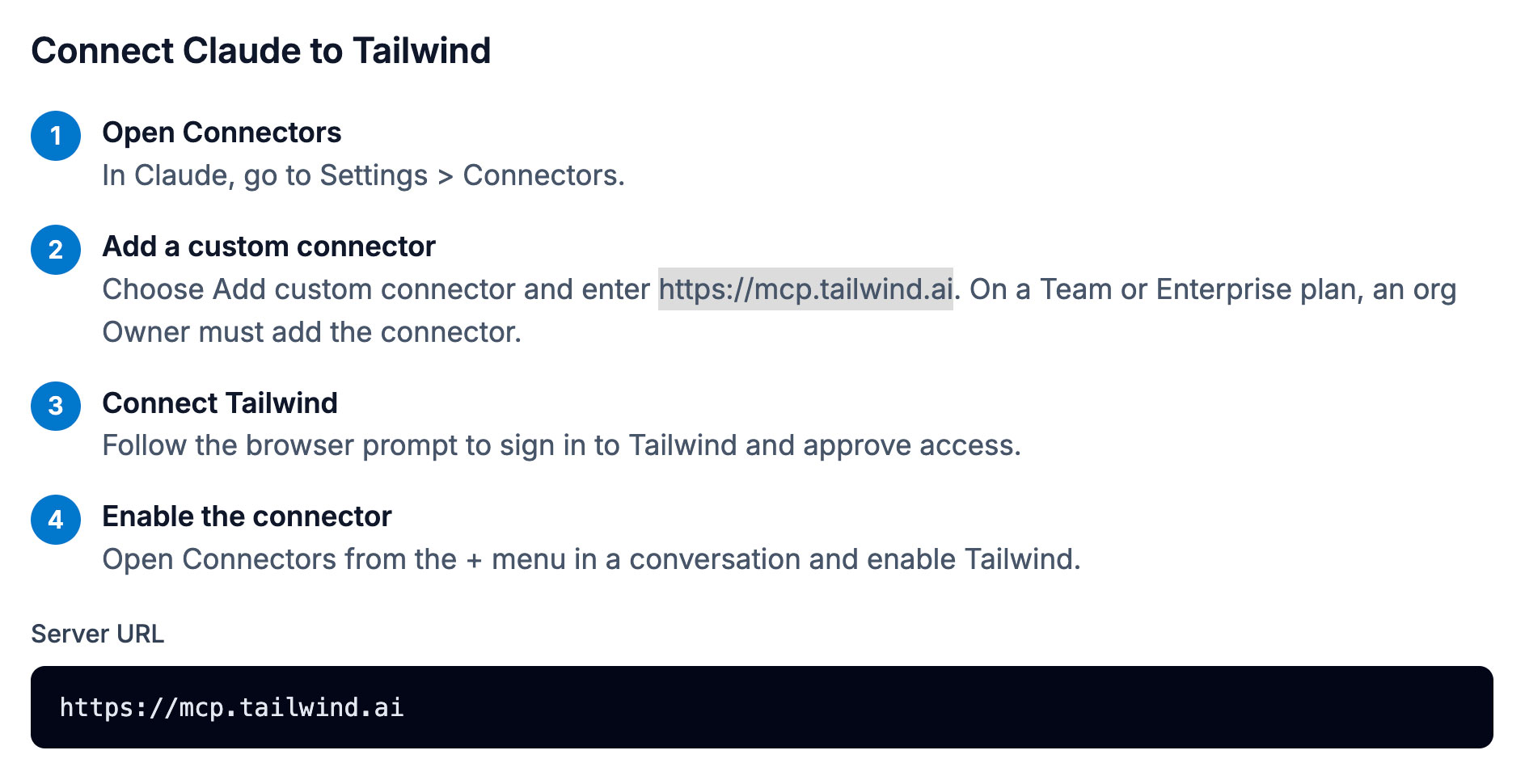
The server URL is https://mcp.tailwind.ai. Quick heads-up: this is NOT a website you can visit in your browser. If you click it, you’ll get nothing exciting. It only works when you paste it into your chat’s connector settings.
Do this today: In Claude, go to Settings > Connectors, add the custom connector, sign in to Tailwind, then switch Tailwind on from the + menu in a new chat.
7. How to Connect ChatGPT to Tailwind
ChatGPT folks, you’ve got the easiest setup of all. There’s a big friendly “Add to ChatGPT” button on Tailwind’s MCP page.
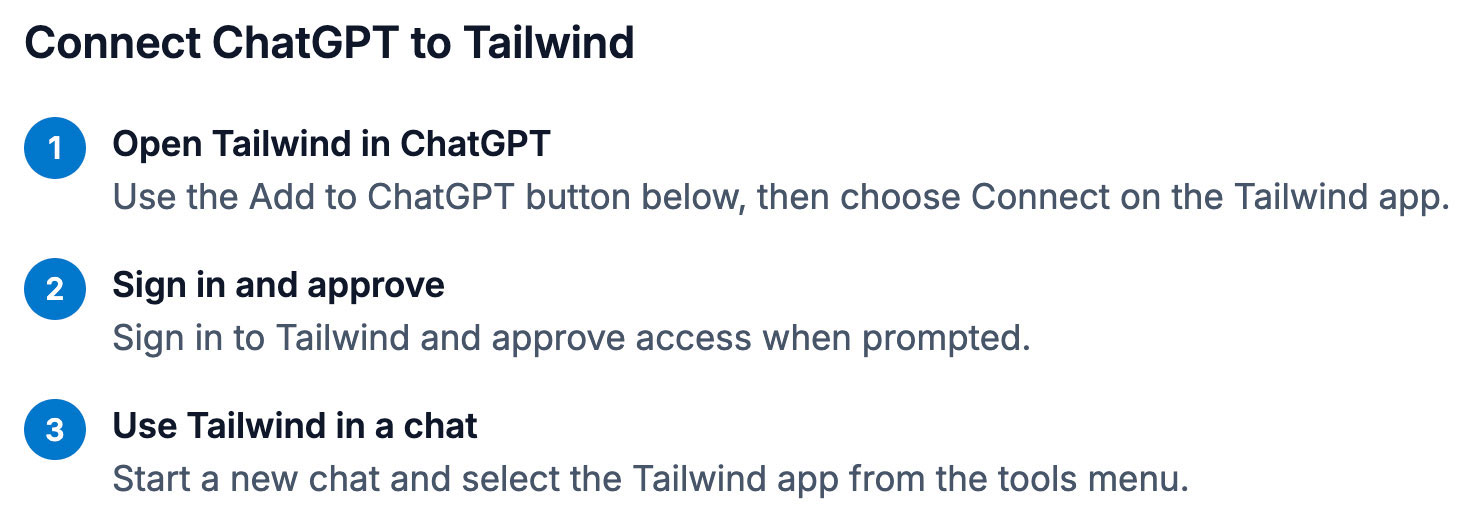
Click the button, connect, sign in to Tailwind, and approve access. Then start a new chat and pick Tailwind from your tools menu.
Do this today: Head to Tailwind’s MCP page, click Add to ChatGPT, and run your first request.
8. How to Connect Gemini to Tailwind
Gemini fans, you’re invited too. There are just a few more boxes to tick.
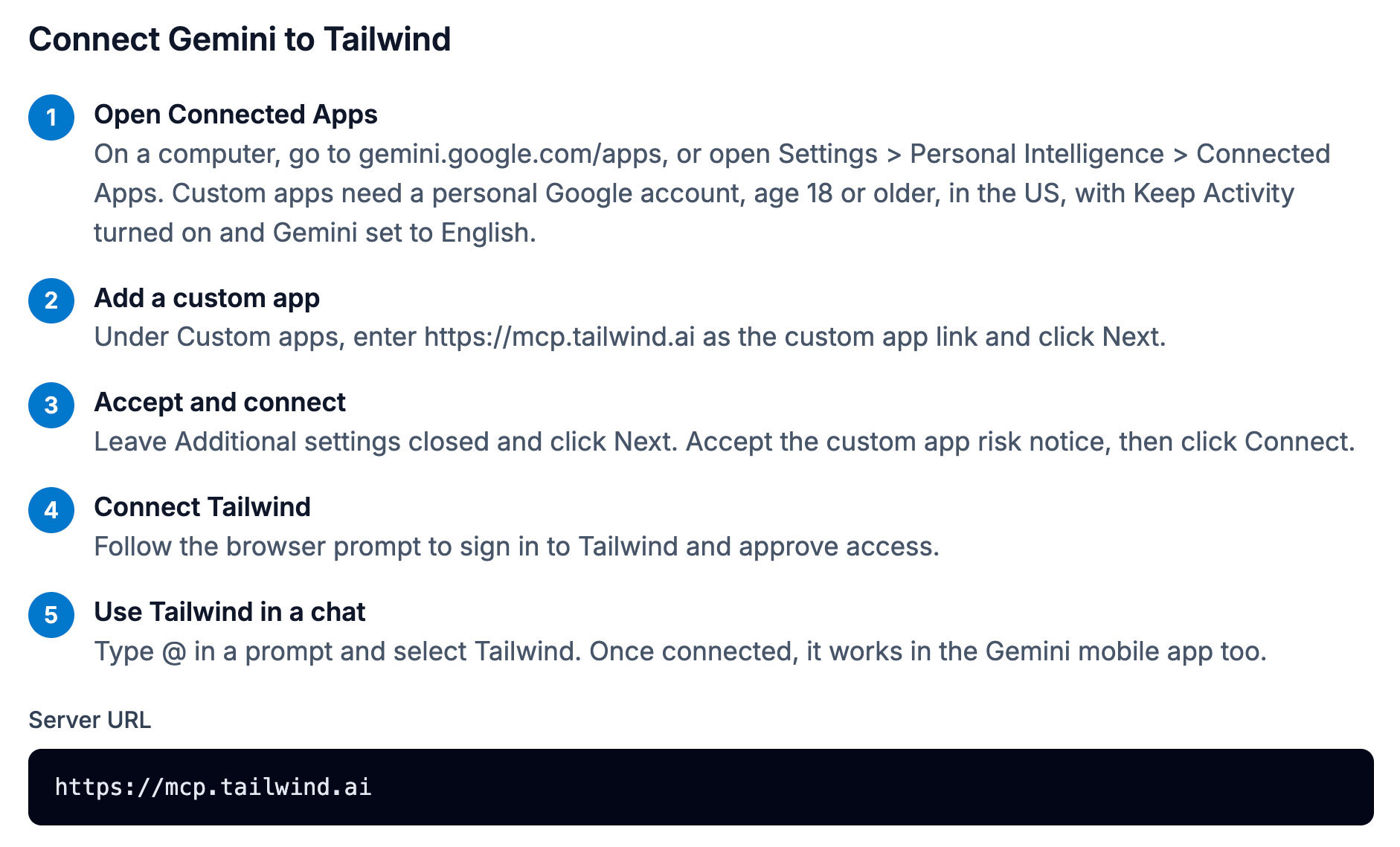
Gemini custom apps require a personal Google account. You also need to be 18 or older and in the US, with Keep Activity turned on and Gemini set to English. If you’re using a work Google account, it may not let you in.
Once it’s connected, type @ in a prompt and choose Tailwind. It works in the Gemini mobile app too!
Do this today: Double-check your Gemini settings first so you don’t get stuck halfway through.
If you need more, check out the full details on any of the Tailwind and Chat MCPs.
9. What It Costs and How You Stay in Control
The two questions I get most: “Does this cost extra?” and “Will my AI go rogue and pin cat memes to my business account?”
Good news on both counts. Tailwind doesn’t charge separately for the AI connection. Reading your analytics, boards, and queue is free, so ask away. Scheduling and generating pins use your regular Tailwind credits, just like they do in the app.
And you stay in the driver’s seat. Every pin lands in your Tailwind queue, where you can edit, move, or unschedule it before it goes live. If you ever want to disconnect, you’ll find your connected assistants under Settings > Integrations in Tailwind. One click and it’s done.
Do this today: If you don’t have Tailwind yet, grab it here and connect your chat right after you sign up.
Connecting AI to Tailwind: The Wrap-Up
Learning how to connect your AI chat to Tailwind is one of those small setup tasks with a big payoff. You get a Pinterest assistant that already knows your business, can juggle all your accounts, and never asks for a lunch break.
If you’re curious how I use Tailwind day to day, check out how I use Tailwind for blog marketing and my favorite hidden Tailwind gems. And if you’re still warming up to AI in general, here’s my take on using ChatGPT for blogging.
Want to get more comfortable working alongside AI? I love Co-Intelligence by Ethan Mollick. It’s a practical, non-scary look at treating AI like a coworker instead of a robot overlord. It’s perfect for listening on a walk, too. Grab it on Audible here.
And stay tuned, because I’ve got real-life use cases coming soon! I’ll show you exactly what I’m asking my chat to do in Tailwind, prompts and all!